How to Recover Deleted CapCut Projects and Videos
Recover deleted CapCut projects and videos using simple methods like drafts, cloud backup, gallery, and recycle bin. Step-by-step recovery guide included.
The loss of a CapCut project or video can be frustrating, particularly after investing hours into editing clips, incorporating effects, and synchronizing audio. Users often lose out on drafts, clear app data or lose projects due to app crashes or uninstall. Thankfully, there are ways to recover deleted CapCut projects and videos in other ways.
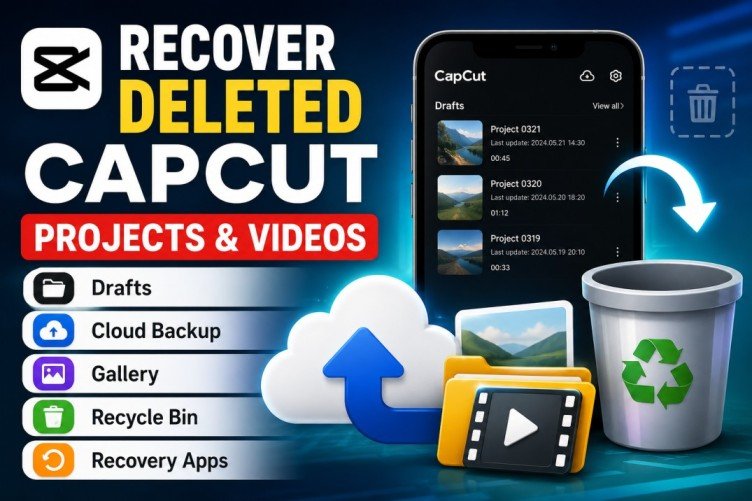
This guide will help you to recover deleted CapCut projects and videos step-by-step with the methods of using drafts, cloud backup, gallery folders, recycle bins, and recovery apps.
Why CapCut Projects and Videos Get Deleted
Before recovering your files, it is important to understand why projects disappear in the first place.
Here are some common reasons:
- Accidentally deleting drafts
- Clearing CapCut cache or app data
- Phone storage cleanup
- App crashes or failed updates
- Uninstalling CapCut
- Corrupted storage files
- Factory resetting the phone
Sometimes the project is not fully deleted and may still exist in your device storage or cloud backup.
Can Deleted CapCut Projects Be Recovered?
Yes, in many cases, deleted CapCut projects can be recovered. Recovery depends on how the files were deleted and whether backups exist.
For example:
- Drafts may still appear inside CapCut
- Exported videos may remain in the gallery
- Cloud backups may restore deleted projects
- Recovery tools can scan deleted storage data
However, if files are permanently overwritten by new data, recovery becomes difficult.
Method 1: Recover Deleted CapCut Projects from Drafts
The Drafts section is the first place you should check.
CapCut pro apk automatically saves unfinished editing projects as drafts. Even if you accidentally close the app, your project may still be there.
Steps to Check Drafts
- Open the CapCut app
- Go to the home screen
- Check the Drafts section
- Search for your missing project
- Tap the project to continue editing
If the draft appears, immediately back it up or export the video to avoid losing it again.
Important Tip
Drafts stored locally may disappear if:
- You uninstall the app
- Clear app storage
- Reset your phone
That is why cloud backup is important.
Method 2: Restore CapCut Projects Using Cloud Backup
CapCut offers cloud storage for users who enable sync and backup options.
If cloud backup was enabled before deletion, recovering your projects becomes much easier.
How to Recover from Cloud Backup
- Open CapCut
- Sign in with your original account
- Go to the cloud or backup section
- Sync your saved projects
- Download the deleted draft again
Cloud backup allows you to access projects across multiple devices.
Benefits of Cloud Backup
- Keeps projects safe online
- Prevents permanent data loss
- Makes device switching easier
- Restores drafts after reinstalling the app
If you edit videos regularly, enabling cloud sync is highly recommended.
Method 3: Recover Deleted CapCut Videos from Phone Gallery
Sometimes users delete the CapCut project but forget that the exported video still exists in the phone gallery.
Before trying recovery software, check your gallery carefully.
Check Recently Deleted Folder
Most Android and iPhone devices keep deleted photos and videos in a Recently Deleted folder for a limited time.
Android
- Open Gallery
- Go to Trash or Recycle Bin
- Restore the deleted video
iPhone
- Open Photos app
- Go to Recently Deleted
- Select and restore the video
Deleted files usually remain there for 30 days.
Search Exported Videos
You can also:
- Search by export date
- Search using keywords
- Check video albums
- Open CapCut export folders
This method is often the fastest solution.
Explore more here: How to Use Green Screen on CapCut
Method 4: Use File Manager to Find Lost CapCut Files
CapCut stores temporary files and drafts inside internal storage folders.
Even if the draft disappears from the app, some files may still exist in storage.
Where CapCut Files Are Stored
Common locations include:
- Internal Storage
- Android
- Data
- CapCut folders
Steps to Check File Manager
- Open File Manager
- Go to Internal Storage
- Open Android > data
- Search for CapCut folders
- Look for draft or backup files
Do not delete unknown files because they may contain project data.
Method 5: Recover Deleted CapCut Videos from Recycle Bin
Many smartphones now include a recycle bin feature inside the gallery or file manager.
Deleted videos are temporarily stored there before permanent removal.
Steps to Restore Files
- Open your Gallery or File Manager
- Go to Recycle Bin or Trash
- Select the deleted video
- Tap Restore
This method works best if the file was deleted recently.
Method 6: Use Data Recovery Apps or Software
If none of the previous methods work, recovery apps may help recover deleted files.
These tools scan device storage for recoverable data.
Best Recovery Tools
Some popular recovery apps include:
- DiskDigger
- Dr.Fone
- EaseUS
- Tenorshare UltData
How Recovery Apps Work
Recovery software scans hidden storage sectors where deleted files may still exist.
After scanning:
- Preview recoverable files
- Select the deleted videos
- Restore them to storage
Important Warning
Avoid recording new videos or installing large apps after deletion because new data can overwrite recoverable files.
The sooner you start recovery, the better your chances.
How to Recover CapCut Projects After Uninstalling the App
Recovering projects after uninstalling CapCut depends on whether backups were enabled.
If drafts were stored only locally, uninstalling the app may permanently remove them.
What You Should Do
- Reinstall CapCut
- Log into the same account
- Sync cloud storage
- Check drafts and backups
Without cloud backup, recovery becomes much harder.
Tips to Prevent Losing CapCut Projects Again
You can avoid future data loss by following a few simple practices.
Useful Prevention Tips
- Enable cloud backup
- Export important videos regularly
- Avoid clearing app data
- Keep free storage space available
- Save projects on external storage
- Update CapCut carefully
Backing up projects regularly is the safest solution.
Common Recovery Problems and Fixes
Drafts Not Showing
Restart CapCut and sign into the correct account.
Cloud Backup Not Syncing
Check your internet connection and sync settings.
Recovery Apps Not Finding Files
Stop using the device immediately to avoid overwriting deleted data.
Corrupted Video Files
Try opening the file with another media player or repair tool.
Conclusion
While some projects and videos can be impossible to recover, others can be retrieved via drafts, cloud backup, recycle bins, galleries, or recovery apps. A quickest recovery way is to first look at the drafts and recently deleted folders before using a more advanced tool.
Make sure to regularly export important projects and enable cloud backup to ensure that you don’t lose your edits again.